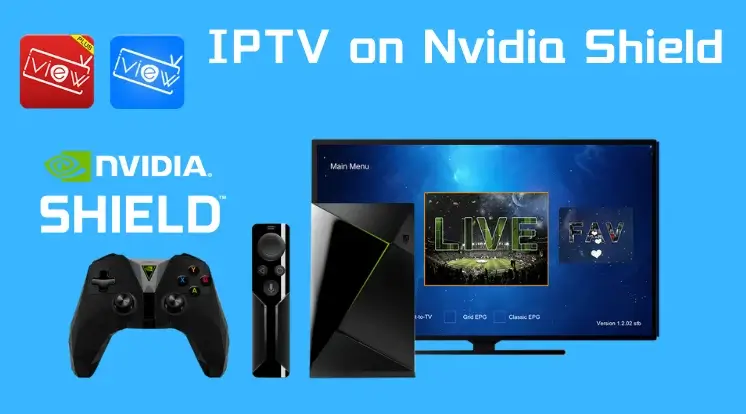
Streaming TV online

How to Install EPIX IPTV on NVIDIA Shield – Step-by-Step 2026
Uncategorized

How to Install EPIX IPTV on NVIDIA Shield

Installing EPIX IPTV on an NVIDIA Shield is simple, thanks to the device’s Android-based system. You can easily install IPTV apps from the Google Play Store or sideload them. Follow these steps to get started: Step 1: Enable Apps from Unknown Sources If you plan to sideload an app (install from outside the Play Store): Step 2: Install an IPTV Player from the Google Play Store Several IPTV players work perfectly with EPIX IPTV, such as IPTV Smarters, TiviMate, or VLC Media Player. Step 3: Enter Your EPIX IPTV Subscription Details Step 4: Start Streaming Optional: Sideloading Apps If your preferred IPTV app is not on the Play Store: Tips for a Smooth Streaming Experience With these steps, your NVIDIA Shield will deliver a seamless EPIX IPTV experience with hundreds of channels and on-demand content ready to watch.
MAG Box IPTV streaming device
Uncategorized

How to Install EPIX IPTV on a MAG Box

Installing EPIX IPTV on a MAG Box is one of the easiest ways to enjoy high-quality IPTV. MAG devices are specifically designed for streaming media, making them perfect for services like EPIX IPTV. Follow these simple steps to get started: Step 1: Connect Your MAG Box Step 2: Find Your MAG Box MAC Address Your MAG Box MAC address is required to activate your EPIX IPTV subscription. Step 3: Register Your MAG Box with EPIX IPTV To receive your service, provide your MAG Box MAC address to EPIX IPTV. Step 4: Configure Your MAG Box Step 5: Restart Your MAG Box Step 6: Start Streaming Troubleshooting Tips Using a MAG Box with EPIX IPTV ensures a smooth, reliable, and enjoyable streaming experience. Follow these steps, and you’ll be ready to enjoy your favorite channels anytime, anywhere.

Scroll to Top