Streaming Guide

How to add IPTV playlists 2026 guide for easy streaming
Uncategorized

How to Add Playlists on IPTV – Complete 2026 Guide

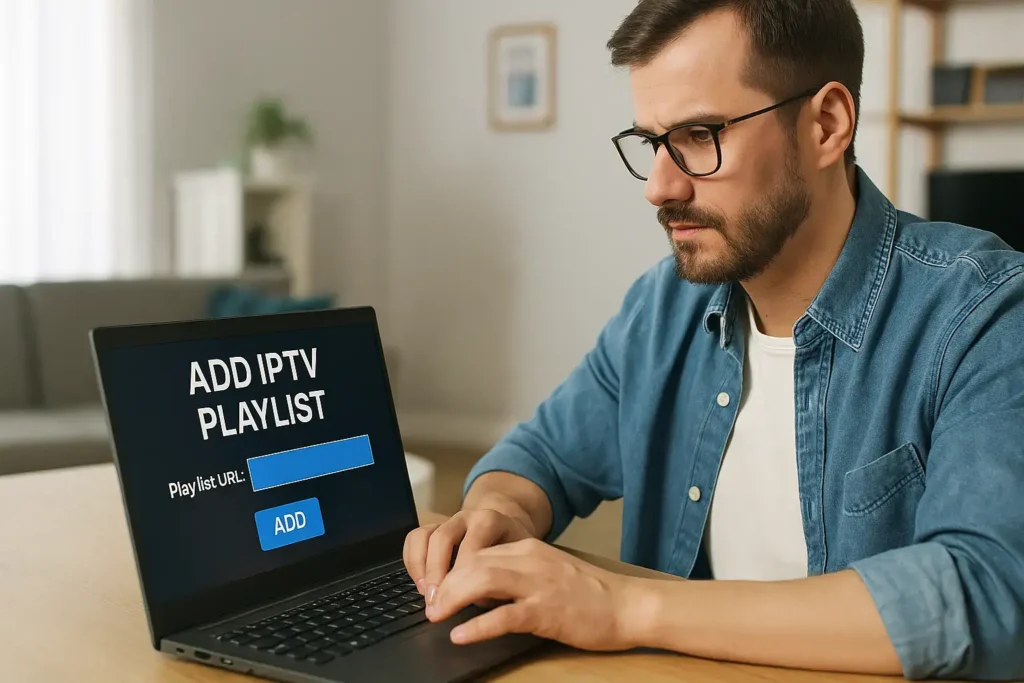
Adding playlists on IPTV may seem complicated at first, but with the right steps, you can enjoy your favorite channels, movies, and series effortlessly. At EPIX IPTV, we provide easy-to-follow guides and reliable services to help you manage your IPTV subscriptions and playlists without hassle. 1. Understanding IPTV Playlist Formats Before adding a playlist, it’s essential to know the available formats: Playlists may include absolute URLs (e.g., http://…) which are more reliable, or relative URLs, which can cause compatibility issues. Make sure your IPTV player supports the file type, usually .m3u or .m3u8. For more information about IPTV technology, see our article on The Evolution of IPTV. 2. Adding an M3U Playlist to Your IPTV Player There are several ways to add playlists to your IPTV app: Tips if the playlist fails to load: For step-by-step installation guides, check our tutorials: 3. Using Xtream Codes API (Alternative Method) Many IPTV apps also support Xtream Codes API, an alternative to M3U playlists. You’ll need three credentials from your IPTV provider: Steps: For a complete guide, see our Perfect IPTV Setup Guide 2026. 4. Troubleshooting Playlist Issues If your channels aren’t loading properly, try these solutions: 5. Managing and Organizing Multiple Playlists A well-organized playlist ensures smooth viewing: For more tips on choosing IPTV services, check our article Top IPTV Providers in 2026. Frequently Asked Questions Is it legal to add third-party playlists?Ensure third-party providers have broadcasting rights. Without proper licensing, sharing may violate copyright laws. Check your local regulations first. How often should I update my IPTV playlist?Weekly updates are recommended. If you notice buffering or dead links, update immediately. Most providers refresh content daily. Can I share my IPTV playlist with family?Yes! Use your provider’s multi-device settings, create separate profiles, and monitor connection limits. What internet speed is required? Can Smart TVs use IPTV playlists without extra devices?Some models support playlists via IPTV apps. Otherwise, external devices like Android boxes or streaming sticks may be required. At EPIX IPTV, we make managing playlists and subscriptions simple, secure, and reliable. Explore our Pricing, Contact, and About Us pages to learn why thousands of users trust us for their IPTV needs. Start enjoying seamless streaming today with EPIX IPTV!
Step-by-step guide to install IPTV Smarters Pro on Windows PC in 2026
Uncategorized

How to Install IPTV Smarters Pro on Windows (2026 Guide)

Installing IPTV Smarters Pro on Windows is one of the easiest and most convenient ways to enjoy live TV, movies, series, and on-demand content directly from your PC. This app is popular among IPTV users due to its clean interface, smooth performance, and simple setup. In this guide, we’ll walk you through the complete installation and configuration steps so you can start streaming with EPIX IPTV quickly and safely. 📌 What You Need Before Installing Before you begin, make sure you have: If you don’t have an IPTV subscription yet, you can check EPIX IPTV plans here:👉 EPIX IPTV Pricinghttps://epix-iptv.co/pricing/ ✅ Step-by-Step: How to Install IPTV Smarters Pro on Windows Step 1: Download IPTV Smarters Pro for Windows Step 2: Install IPTV Smarters Pro on Windows Step 3: Open IPTV Smarters Pro Launch IPTV Smarters Pro from the Start Menu or the desktop shortcut. Step 4: Add Your IPTV Subscription Once the app opens, you will be asked to enter your subscription details. You can log in using one of the following methods: Option 1: M3U URL Option 2: Xtream Codes API Step 5: Start Streaming on Windows After logging in successfully, IPTV Smarters Pro will load your channels and VOD content.Now you can enjoy: For the best streaming experience, make sure your PC and network are properly set up. You can check our Perfect IPTV Set-Up (2026) guide for full details 📌 Troubleshooting (Common Issues) Why is IPTV Smarters Pro not working on Windows? Here are the most common reasons: If the issue continues, contact your IPTV provider for support.Also, you can read more about IPTV Security & Privacy in 2026 to make sure your connection is safe and stable ✅ FAQs (Frequently Asked Questions) Q1: Where can I find the M3U URL or Xtream Codes?Your IPTV provider sends them after subscription. Check your email or the customer portal. Q2: Can I add multiple IPTV subscriptions?Yes. You can add multiple M3U links or Xtream Codes inside the app. Q3: What devices support IPTV Smarters Pro?Besides Windows, it supports Android, iOS, Smart TVs, and more.If you use a MAG Box or NVIDIA Shield, you can follow our step-by-step installation guides: 🔥 Want a Stable and Reliable IPTV Subscription? If you’re looking for a trusted IPTV service with strong performance, EPIX IPTV offers flexible plans and high-quality streaming. 👉 Learn more about EPIX IPTV Need help or have questions? Contact EPIX IPTV support:

Scroll to Top