
Installing IPTV Smarters Pro on Windows is one of the easiest and most convenient ways to enjoy live TV, movies, series, and on-demand content directly from your PC. This app is popular among IPTV users due to its clean interface, smooth performance, and simple setup.
In this guide, we’ll walk you through the complete installation and configuration steps so you can start streaming with EPIX IPTV quickly and safely.
📌 What You Need Before Installing
Before you begin, make sure you have:
- A stable internet connection
- A valid IPTV subscription (M3U or Xtream Codes)
- A Windows PC (Windows 10 or 11 recommended)
If you don’t have an IPTV subscription yet, you can check EPIX IPTV plans here:
👉 EPIX IPTV Pricing
https://epix-iptv.co/pricing/
✅ Step-by-Step: How to Install IPTV Smarters Pro on Windows
Step 1: Download IPTV Smarters Pro for Windows
- Open your web browser and visit the official IPTV Smarters Pro website or a trusted download source.
- Download the Windows version of the app.
- Wait for the installer file to complete downloading.
Step 2: Install IPTV Smarters Pro on Windows
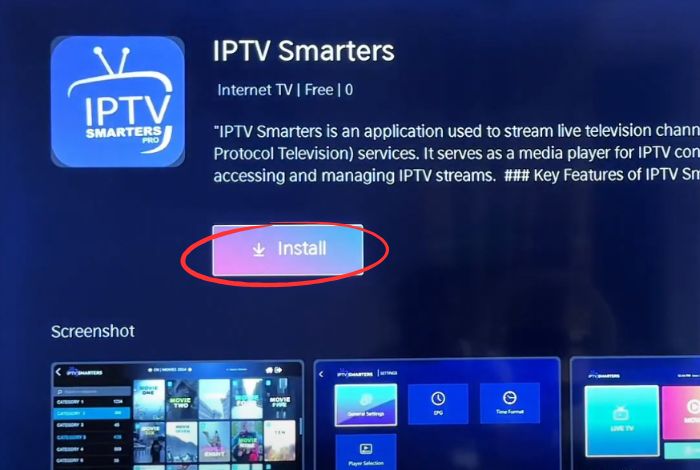
- Go to your Downloads folder.
- Double-click the IPTV Smarters Pro installer file.
- Follow the on-screen installation steps like any regular Windows program.
- Click Finish when the installation is complete.
Step 3: Open IPTV Smarters Pro
Launch IPTV Smarters Pro from the Start Menu or the desktop shortcut.
Step 4: Add Your IPTV Subscription
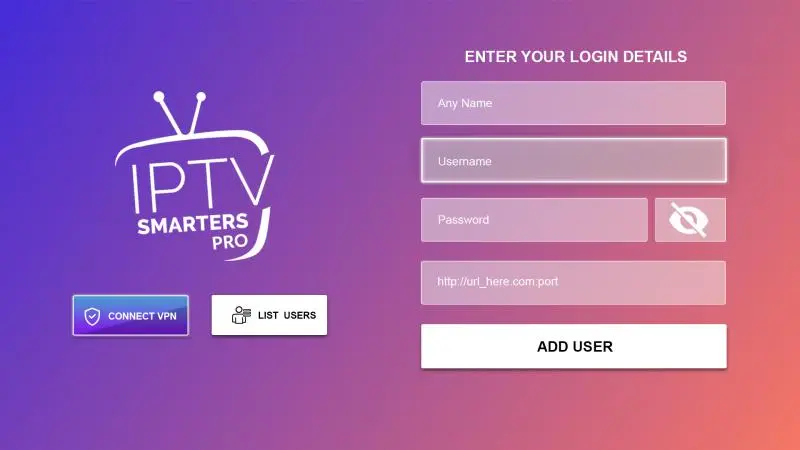
Once the app opens, you will be asked to enter your subscription details. You can log in using one of the following methods:
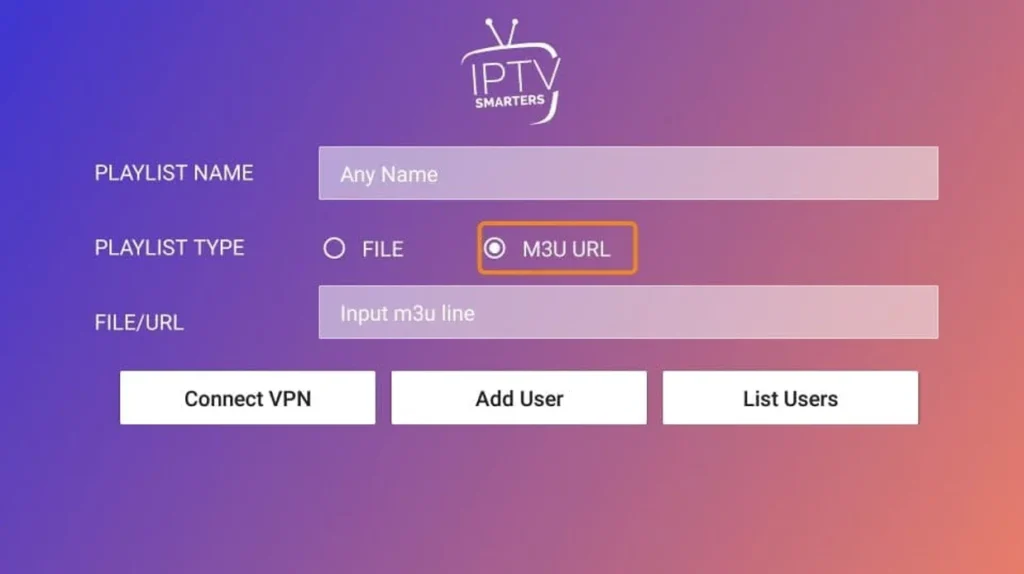
Option 1: M3U URL
- Enter the M3U link provided by your IPTV provider.
Option 2: Xtream Codes API
- Enter:
- Server URL
- Username
- Password
- Then click Add User or Connect to continue.
Step 5: Start Streaming on Windows
After logging in successfully, IPTV Smarters Pro will load your channels and VOD content.
Now you can enjoy:
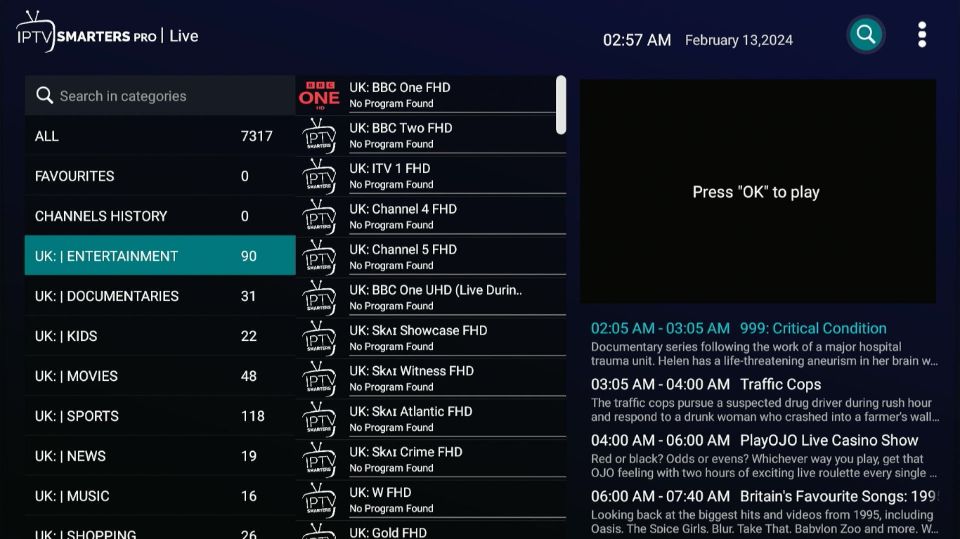
- Live TV channels
- Sports
- Movies & series
- On-demand content
For the best streaming experience, make sure your PC and network are properly set up. You can check our Perfect IPTV Set-Up (2026) guide for full details
📌 Troubleshooting (Common Issues)
Why is IPTV Smarters Pro not working on Windows?
Here are the most common reasons:
- Incorrect M3U URL or Xtream Codes
- Weak internet connection
- Expired IPTV subscription
- Server issues from the provider
If the issue continues, contact your IPTV provider for support.
Also, you can read more about IPTV Security & Privacy in 2026 to make sure your connection is safe and stable
✅ FAQs (Frequently Asked Questions)
Q1: Where can I find the M3U URL or Xtream Codes?
Your IPTV provider sends them after subscription. Check your email or the customer portal.
Q2: Can I add multiple IPTV subscriptions?
Yes. You can add multiple M3U links or Xtream Codes inside the app.
Q3: What devices support IPTV Smarters Pro?
Besides Windows, it supports Android, iOS, Smart TVs, and more.
If you use a MAG Box or NVIDIA Shield, you can follow our step-by-step installation guides:
🔥 Want a Stable and Reliable IPTV Subscription?
If you’re looking for a trusted IPTV service with strong performance, EPIX IPTV offers flexible plans and high-quality streaming.
👉 Learn more about EPIX IPTV
Need help or have questions? Contact EPIX IPTV support: